 Credit: Lucas Gouveia / Android Police
 By
Anu Joy
Published Feb 28, 2026, 4:00 PM EST
Anu is a Features author at Android Police. You'll find her writing in-depth pieces about automation tools, productivity apps, and explainers.
Before joining AP, she used to write for prominent tech publications like iJunkie and Gizbot.
In her free time, you can find her making digital illustrations, playing video games, watching horror movies, or re-reading the classics.
Sign in to your Android Police account
Add Us On
Summary
Generate a summary of this story
follow
Follow
followed
Followed
Like
Like
Thread
Log in
Here is a fact-based summary of the story contents:
Try something different:
Show me the facts
Explain it like I’m 5
Give me a lighthearted recap
By
Anu Joy
Published Feb 28, 2026, 4:00 PM EST
Anu is a Features author at Android Police. You'll find her writing in-depth pieces about automation tools, productivity apps, and explainers.
Before joining AP, she used to write for prominent tech publications like iJunkie and Gizbot.
In her free time, you can find her making digital illustrations, playing video games, watching horror movies, or re-reading the classics.
Sign in to your Android Police account
Add Us On
Summary
Generate a summary of this story
follow
Follow
followed
Followed
Like
Like
Thread
Log in
Here is a fact-based summary of the story contents:
Try something different:
Show me the facts
Explain it like I’m 5
Give me a lighthearted recap
My Gmail storage was almost full, and I had no idea how it happened. I don’t keep thousands of unread emails, and I regularly clear out spam. Still, the warning kept popping up.
That’s when I realized the problem wasn’t the number of emails: it was what was inside them. Large attachments, old threads I never cleaned up, and years of forgotten files were occupying space.
Instead of upgrading to Google One, I decided to clean up my inbox. Here’s what I did, and what made the biggest difference.
 Related
I turned Gmail into a lightweight task manager and finally ditched my to-do apps — here's how
Related
I turned Gmail into a lightweight task manager and finally ditched my to-do apps — here's how
My inbox stopped feeling like a problem I had to solve separately
Posts By Anu JoyI searched for the biggest space hogs first
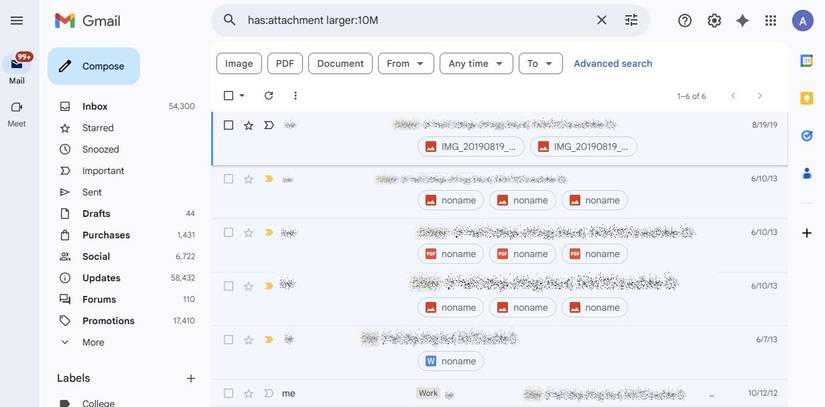
Instead of randomly deleting emails, I started with the ones doing the most damage.
In Gmail’s search bar, I typed has:attachment larger:10M. That instantly pulled up emails with attachments bigger than 10MB. Many of them were old PDFs, event photos, and work files I had already downloaded months ago.
You can adjust the size based on how aggressively you want to identify the storage issues. The objective is to pinpoint the most significant storage offenders first.
I also reviewed old emails from services that frequently send large files, such as scanned documents, reports, or shared media. Deleting just a handful of those freed up more space than clearing hundreds of small emails ever would.
Starting with the largest files made the cleanup feel manageable.
I nuked old promotions in bulk
After dealing with large attachments, I turned to the Promotions tab.
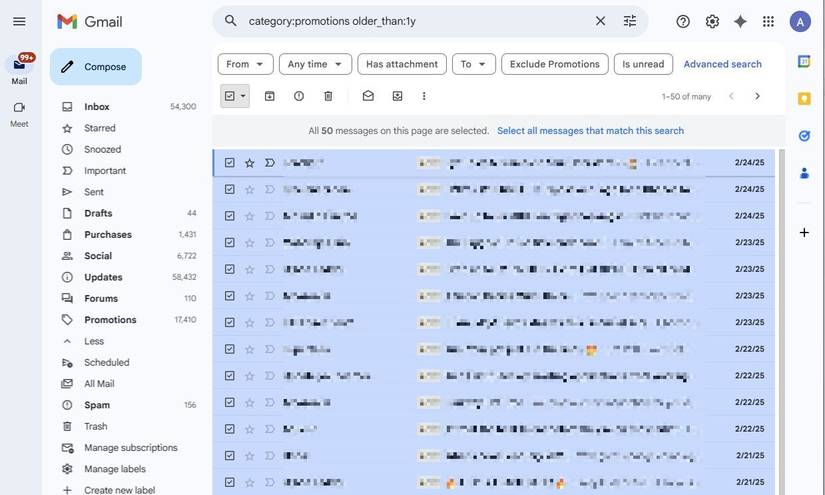
Years of marketing emails had piled up in my inbox. Instead of deleting them one by one, I searched for older promos and cleared them in batches.
In Gmail’s search bar, I typed category:promotions older_than:1y. That filtered out promotional emails older than one year.
From there, I clicked the checkbox at the top to select everything on the page. Then choose Select all messages that match this search and clicked the Delete icon.
That last step is crucial. It lets you wipe out hundreds of old promotional emails at once.
I repeated the same for Social:
category:social older_than:1y
A few bulk deletions made a noticeable dent in my storage, and my inbox instantly looked cleaner.
I unsubscribed as I deleted
 Credit: Lucas Gouveia / Android Police
While clearing old promotions, I noticed that the same senders kept showing up repeatedly. Deleting their emails provided a temporary sense of relief, but it didn’t stop the influx of new messages.
If I didn’t unsubscribe, I’d be back here in a few months doing the same cleanup.
As I deleted the items, I also unsubscribed from them.
For many promotional emails, there’s an Unsubscribe link next to the sender’s name at the top. Clicking it takes a few seconds, and in most cases, that’s the end of it. For others, you’ll need to scroll to the bottom and use the unsubscribe link there.
Less incoming clutter means less future cleanup.
I searched for file types I didn’t need
 Credit: Lucas Gouveia/Android Police
After clearing the obvious large attachments, I got more specific.
Instead of guessing what to delete, I searched by file type. Gmail lets you filter attachments directly in the search bar, so I entered the following terms in the search bar:
- filename:pdf
- filename:zip
- filename:ppt
- filename:mp4
That quickly surfaced old documents, compressed folders, presentations, and random media files that had been sitting in my inbox for years.
Many of them were things like scanned forms, event decks, and shared reports I’d already downloaded once. Keeping them in Gmail wasn’t necessary.
This method felt more targeted than just deleting by date. I was deleting files from my inbox that I no longer needed.
Deleting by file type helped me move faster instead of scanning randomly.
I cleared Gmail’s Trash and Spam folders
I almost forgot this step, and it matters more than most people realize.
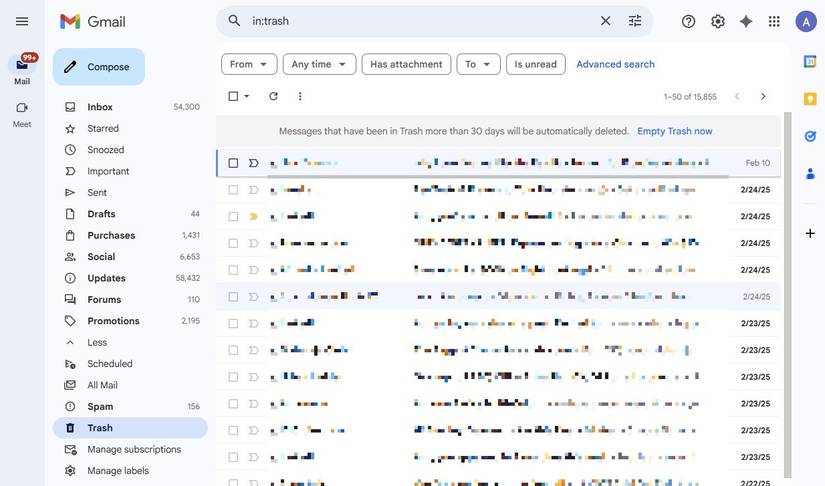
Deleting emails doesn’t immediately free up space in Gmail. Items are moved to the Trash, where they stay for up to 30 days before being permanently deleted. The same goes for Spam.
After bulk-deleting large attachments and old promotions, I opened both folders and emptied them.
Subscribe to our newsletter for smarter inbox control
Keep storage worries away - subscribe to the newsletter for clear, practical Gmail cleanup guidance you can act on. Get proven inbox management tactics, storage-saving steps, and habit changes to keep your mail lean and manageable. Subscribe By subscribing, you agree to receive newsletter and marketing emails, and accept our Terms of Use and Privacy Policy. You can unsubscribe anytime.In Gmail, you can click Trash in the left sidebar and click Empty Trash now. Then, go to Spam and click Delete all spam messages now.
It takes seconds, but it’s the step that actually frees up the storage right away instead of waiting a month.
I changed a few habits so that my inbox doesn’t fill up again
 Credit: Lucas Gouveia / Android Police
After cleaning everything up, I didn’t want to be back in the same situation six months later. So I changed a few habits.
First, I stopped using my main email for everything. Retail signups, discount codes, and random downloads don’t need to live in the same inbox as bank alerts and personal emails.
Second, I got quicker at deleting emails with large attachments after I’d downloaded what I needed. If the file is already saved, there’s no reason for the email to stay in my inbox forever.
I also clear the Promotions tab in bulk every few weeks instead of letting it build up for years. And if I don’t open something more than once or twice, I unsubscribe on the spot.
These tiny changes ensure my storage doesn’t quietly creep back up again.
 Related
How a month-long app purge finally fixed my relationship with my phone
Related
How a month-long app purge finally fixed my relationship with my phone
Pressing the reset button did more than clean up my homescreen
Posts 1 By Anu JoyI didn’t need to upgrade my storage after all
When Gmail warned me that my storage was almost full, my first thought was to upgrade to Google One. It felt easier than digging through years of emails.
After I examined what was occupying the space, I realized that the solution was not complicated. A few targeted searches, some bulk deletions, clearing Trash and Spam, and unsubscribing from things I never read made a noticeable difference.
-
 Gmail
Gmail
Subscribe to our newsletter for smarter inbox control
Keep storage worries away - subscribe to the newsletter for clear, practical Gmail cleanup guidance you can act on. Get proven inbox management tactics, storage-saving steps, and habit changes to keep your mail lean and manageable. Subscribe By subscribing, you agree to receive newsletter and marketing emails, and accept our Terms of Use and Privacy Policy. You can unsubscribe anytime. Trending Now I found an all-in-one Android productivity app, and I can't stop raving about it
 The latest Pixel software issues raise old concerns
 I stopped ignoring these Google Maps features, and my commute improved instantly